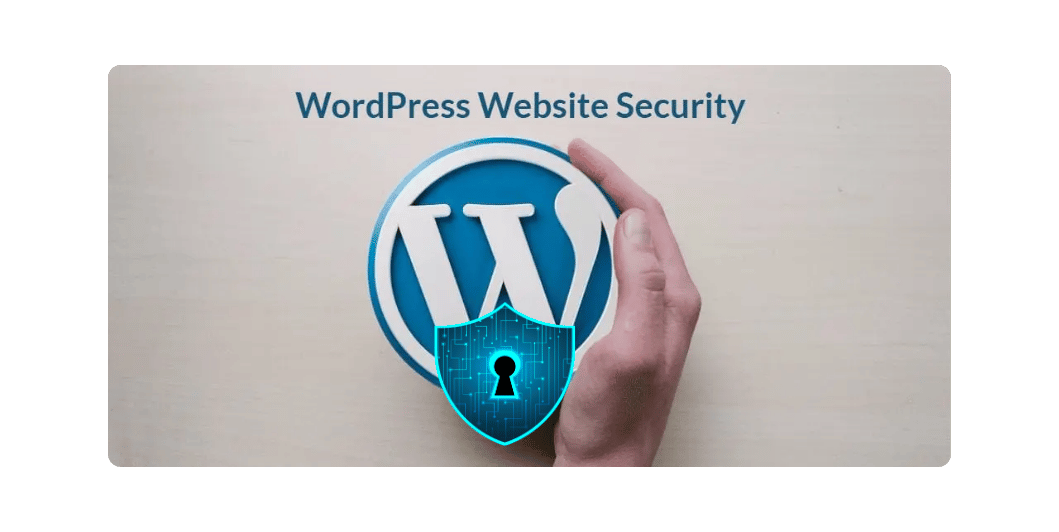
How to Secure Your WordPress Website: The Complete Security Guide for 2026
Introduction
WordPress powers millions of websites, making it one of the most popular content management systems in the world.
Its popularity also makes it a frequent target for hackers.
A compromised website can lead to:
- Lost customer trust
- Stolen data
- SEO penalties
- Malware infections
- Downtime
- Revenue loss
The good news is that most WordPress security issues can be prevented with proper maintenance and best practices.
This guide will show you how to build multiple layers of protection for your WordPress website.
Read Also: WordPress for Beginners
Why WordPress Security Matters
A secure website helps you:
- Protect customer data
- Prevent unauthorized access
- Reduce downtime
- Improve website reliability
- Maintain SEO performance
- Protect your business reputation
Security isn’t a one-time task—it’s an ongoing process.
Common WordPress Security Threats
Understanding common risks helps you prepare.
These include:
- Brute-force login attacks
- Malware infections
- Vulnerable plugins
- Outdated themes
- Phishing attempts
- SQL Injection
- Cross-Site Scripting (XSS)
- File inclusion attacks
Awareness is the first step toward prevention.
1. Keep WordPress Updated
Always update:
- WordPress Core
- Themes
- Plugins
Updates often contain important security fixes.
Before major updates:
- Create a backup
- Test on a staging site if possible
2. Use Strong Passwords
Avoid passwords like:
admin123
password
123456
Instead use:
- Long passwords
- Uppercase letters
- Lowercase letters
- Numbers
- Symbols
Each administrator should have a unique password.
3. Enable Two-Factor Authentication (2FA)
Even if a password is compromised, two-factor authentication provides an additional layer of security by requiring a second verification step.
4. Change the Default Admin Username
Avoid using:
admin
administrator
Create a unique administrator account and remove predictable usernames where practical.
5. Install a Security Plugin
A reputable security plugin can help with:
- Firewall protection
- Malware scanning
- Login security
- File monitoring
- Security alerts
Choose a trusted solution and keep it updated.
6. Limit Login Attempts
Repeated failed login attempts may indicate automated attacks.
Limiting login attempts helps reduce the effectiveness of brute-force attacks.
Read Also: 20 Must-Have WordPress Plugins
7. Use HTTPS
Install an SSL certificate.
HTTPS encrypts communication between your website and visitors, helping protect sensitive information.
8. Take Automatic Backups
Back up:
- Files
- Database
- Media
- Themes
- Plugins
Store backups in a secure off-site location and test your restoration process periodically.
9. Remove Unused Plugins and Themes
Inactive components can become security risks.
Delete:
- Old themes
- Unused plugins
- Abandoned extensions
Only keep what your website actually uses.
10. Install Plugins from Trusted Sources
Download plugins only from:
- The official WordPress Plugin Directory
- Well-known developers
- Reputable marketplaces
Avoid downloading nulled or pirated plugins, as they may contain malicious code.
11. Choose Secure Hosting
A quality hosting provider often includes:
- Server firewalls
- Malware scanning
- DDoS protection
- Automatic backups
- Security monitoring
Reliable hosting is an important part of your security strategy.
12. Disable File Editing
By default, WordPress allows administrators to edit theme and plugin files from the dashboard.
If you don’t need this feature, disabling it reduces the risk of unauthorized changes.
13. Monitor User Accounts
Review your users regularly.
Remove accounts that are no longer needed and assign the lowest level of access required for each user.
14. Protect Against Spam
Spam comments can affect your site’s credibility and consume resources.
Use CAPTCHA, moderation, or anti-spam tools to reduce unwanted submissions.
15. Monitor Security Logs
Review login activity, file changes, and other security events regularly.
Early detection makes it easier to respond to suspicious activity.
WordPress Security Checklist
Before considering your website secure, confirm that you’ve:
✅ Updated WordPress
✅ Updated plugins
✅ Updated themes
✅ Enabled SSL
✅ Configured automatic backups
✅ Enabled two-factor authentication
✅ Installed a firewall
✅ Limited login attempts
✅ Removed unused plugins
✅ Reviewed administrator accounts
Read Also: Website Security Guide
Common WordPress Security Mistakes
Avoid these mistakes:
- Using weak passwords
- Ignoring updates
- Installing pirated themes or plugins
- Not creating backups
- Giving every user administrator access
- Ignoring suspicious login activity
Frequently Asked Questions
Can WordPress websites be hacked?
Yes. Any website can be targeted, but following security best practices significantly reduces your risk.
How often should I update WordPress?
Install updates promptly after verifying compatibility and taking a backup, especially when they include security fixes.
Do I really need backups?
Absolutely. Backups provide a way to restore your website if something goes wrong.
Is one security plugin enough?
A security plugin is helpful, but it should be part of a broader strategy that includes updates, strong passwords, secure hosting, backups, and regular monitoring.
Final Thoughts
WordPress security isn’t about finding a single “perfect” solution—it’s about building multiple layers of protection.
By keeping your website updated, using strong authentication, maintaining reliable backups, and choosing trusted tools, you can greatly reduce the risk of security incidents.
Treat security as an ongoing responsibility, and your website will be better prepared to protect both your business and your visitors.




One Comment